


Draw with AR: Trace and Sketch
4.680.00 Reviews
App Specs
- Version
- 1.3.0
- Updated On
- License
- Free
- Downloads
- 1,000,000+
- Developer
- Veewa Labs
- Categories
- Art & Design
- Platform
- Android
Screenshots
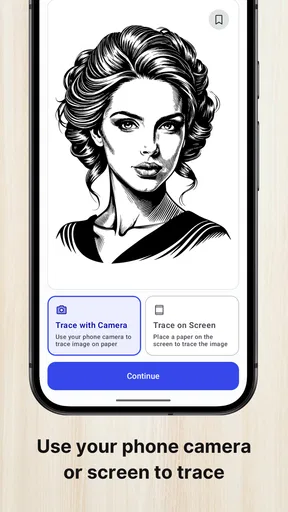
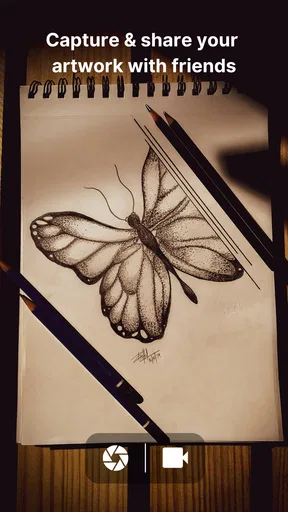
 Analysis by AppCompare
My first useful test of Draw with AR: Trace and Sketch would be a simple one: take a reference image I already like, put a sheet of paper on a steady table, and see whether the AR guide helps me get the broad shapes down without turning the session into a setup project. That is the promise I find most appealing here. The app is not trying to replace drawing; it gives your hand a visual reference while you work on a physical surface.
That distinction matters when choosing an art app. If I want to paint entirely on a screen, I would reach for a conventional digital drawing tool instead. If I want to practice proportions, make a quick card illustration, or sketch a subject that feels intimidating freehand, tracing through a camera view is a different and potentially more approachable starting point.
Choose a reference that suits the paper
I would begin with an image whose main shapes read clearly at a glance rather than a busy photograph full of tiny details. A clean outline, a simple object, or a portrait with distinct light and dark areas gives me a better chance of understanding what to trace. This is a practical trade-off: the more visual information in the reference, the more decisions I still have to make with my pencil.
Before drawing, I would also decide what I want from the exercise. For a beginner, tracing the outer contour can be enough practice for hand control. Someone with more experience might use the guide only to place proportions, then put the phone aside and develop the shading independently. Treating the overlay as scaffolding, rather than as a finished drawing recipe, helps preserve room for personal choices.
A small setup step makes a big difference
Because the image is viewed through the phone’s camera and aligned with a real surface, a stable arrangement is more useful than a complicated one. I would place the paper where it will not slide, keep the phone steady, and avoid shifting either once I start following an edge. If the reference seems to drift while I work, pausing to settle the setup is better than trying to compensate with increasingly uncertain strokes.
This is also why I would start with a short test sketch instead of committing to a large, detailed piece. A quick outline lets me find out whether the viewing angle and the available light are comfortable for my particular table and phone position. It is a low-stakes way to build confidence before spending time on a drawing I care about.
Getting Started: First Impressions
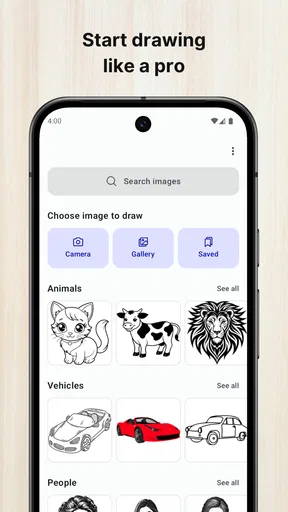
So, picture this: you’ve just downloaded Draw with AR: Trace and Sketch on your phone, and you’re itching to try it out. The installation is smooth, and before you know it, you’re greeted by a clean, intuitive interface. It’s refreshing to see an app that doesn’t overwhelm you with too many options right off the bat.
Worth Reading Before You Choose

Flipboard Shows What News Apps Must Do Beyond the Feed

Switching to Android Auto Means Rethinking Your Driving Routine

Google Calendar Makes a Crowded Week Easier to Manage

Ludo King Makes the Most of the Minutes Between Plans

Baby Panda World Brings Quick Play to Modern Phones, but Its Game Library Feels Busy

ESPN’s Live Game View Makes Following Close Games Easier
Setting up is a breeze. You get a quick tutorial that walks you through the basics of how to use the AR feature, which is the heart of this app. The instructions are clear, and even if you’ve never dabbled in augmented reality before, you’ll find it easy to follow along.
The Magic of Augmented Reality
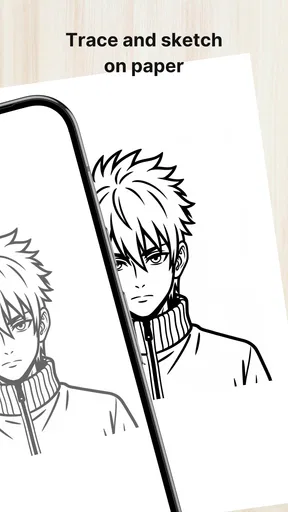
Alright, let’s talk about the real star of the show here: the AR functionality. Once you select an image you want to draw, the app projects it onto your drawing surface using your phone’s camera. It’s almost like having a virtual stencil hovering over your paper. Pretty cool, right?
This feature is especially useful for those detailed sketches where precision is key. Whether it’s a portrait or a complex landscape, the app guides your hand, allowing you to trace with confidence. It’s like having a personal art tutor right in your pocket.
Keep the guide useful, not restrictive
For a realistic after-school or evening routine, I would pick one subject, make a quick first pass, and then compare the traced result with the source image. If the drawing feels stiff, I would stop copying every visible mark and focus instead on the angles and proportions that make the subject recognizable. That small change turns tracing into an observation exercise rather than a race to reproduce every detail.
A useful workflow is to separate placement from finish. I would use the overlay to establish the outline and the position of major features, then continue with the phone out of the way for texture, shadows, and corrections. This keeps the AR guidance where it is strongest—helping with visual alignment—while leaving the expressive decisions to me. It also makes the finished page feel more like my own work.
For a parent helping a child draw, or for a beginner who freezes at a blank page, the visible reference can make the first mark less daunting. For someone who already draws confidently, it is more valuable as an occasional perspective check than as a permanent crutch. I would not recommend using it as a substitute for learning to observe: freehand practice still develops skills the overlay cannot supply.
User Experience: Navigating the App
The user experience is seamless. Navigating through the app is straightforward, and the developers have clearly put thought into making it user-friendly. The menu options are logical, and all the tools you might need are just a tap away.
One of the features I really appreciate is the gallery. You can save your creations and look back at them whenever you need some inspiration. Plus, sharing your artwork on social media is super easy, which is great for those of us who love to showcase our progress.
From paper to a shareable result
The gallery and sharing options make sense at the end of a session, but I would treat them as a record of the process rather than proof that a drawing is finished. A useful habit is to save a few attempts at different stages: an early outline, a more developed version, and the final page. Looking back can show whether proportions are improving, even when each individual sketch feels imperfect.
There is a practical handoff here: the AR view helps while the drawing is being made, but the paper remains the actual artwork. If I want to share it clearly, I need to make the physical page easy to see and avoid judging the result through the phone overlay alone. The app can help me capture progress socially, but my pencil choices, cleanup, and presentation still determine how polished the piece looks.
For a small everyday use, I can imagine tracing a favorite plant or a pet during a quiet break, saving the page, and sending it to a friend or keeping it as a personal sketchbook entry. It is a modest workflow, not a full art-production pipeline, and that is part of its appeal: I can move from a reference to a tangible drawing without first learning a complex canvas interface.
Creativity Unleashed: Extra Features
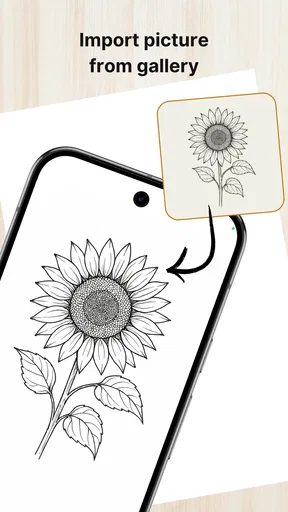
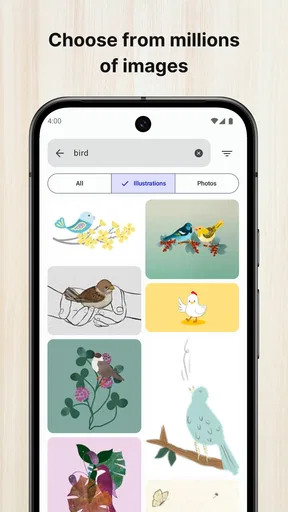
But wait, there’s more! The app offers a variety of templates to choose from. Whether you’re into animals, architecture, or abstract designs, there’s something for everyone. And if you’re feeling particularly adventurous, you can even upload your own images to trace.
The app also includes a range of drawing tools, from pencils to brushes, allowing you to add your own unique flair to each piece. The color palette is extensive, so you can really let your creativity shine through.
Templates, personal references, and sensible limits
Templates are handy when I want to start immediately, while choosing my own image makes the exercise more personal: a household object, a photograph from a trip, or a subject I want to understand better. I would be selective with personal references. Images with a clear subject and uncluttered background are easier to interpret than scenes where many edges overlap, and selecting a simpler crop before starting can make the tracing session feel less fussy.
The drawing tools and colors give me options for how to finish the page, but they do not remove the difference between a physical sketch and digital illustration. I would choose the tool that suits the paper and the result I want, rather than assume every brush will behave like a screen-based brush. If my goal is layered digital painting, precise undo history, or elaborate editing, a dedicated drawing program is the better fit.
That is the key comparison with the usual alternatives. A printed reference or a tablet beside the paper can also help me study a subject, but neither places the guide over the drawing surface in the same way. Freehand work gives more independence and builds observation skills, while a digital canvas offers direct editing and a different kind of flexibility. This app sits between those approaches: its specific strength is making a reference easier to follow on paper, with the trade-off that I need a workable phone-and-surface arrangement.
Who will enjoy this workflow
I see the clearest fit for newcomers who want a less intimidating route into sketching, hobbyists who enjoy drawing from references, and anyone who wants to make a quick handmade illustration without starting from a blank page. It can also be useful for an experienced artist testing a composition or checking the placement of a subject before adding detail. In each case, the best results come from deciding in advance which parts to trace and which parts to interpret freely.
I would steer away from it if I wanted a fully digital workspace, if I planned to draw for a long session without keeping a phone positioned over the page, or if I expected the app to make artistic decisions for me. The AR guide can support alignment, but it cannot choose expressive line weight, improve an unclear reference, or replace the practice of judging shape and proportion. Those limits are not deal-breakers; they define what kind of tool this is.
What to expect before installing
As an Art & Design app from Veewa Labs, it is free to download and aimed at everyone. The app has a 4.7 average from around 9,400 ratings, with over a million installs, so it has attracted plenty of interest from people looking for this style of guided drawing. Its current version is 1.2.6, and it requires Android 8.1 or later. There are in-app purchases at $9.99 per item, so I would check what is included before deciding whether to spend anything; the basic appeal is easy to understand without assuming that every option is included at no cost.
One question I would ask before a first session is whether my phone and drawing surface can stay comfortably aligned while I work. Another is whether I want a reference-led sketch or an editable digital image; the former suits this workflow, while the latter points me toward a standard drawing app. And if I am unsure about paying for extras, I would try the free experience first and only consider a purchase if a specific item solves a need I have actually encountered.
Final Thoughts: Is It Worth It?
So, what’s the verdict? In my opinion, Draw with AR: Trace and Sketch is a fantastic tool for artists of all levels. Whether you’re a beginner looking to practice or a seasoned artist wanting to try something new, this app provides a fun and innovative way to enhance your skills.
The integration of augmented reality is impressive and adds a whole new dimension to the drawing process. It’s engaging, educational, and most importantly, it makes drawing accessible to everyone.
Overall, I’d say give it a go! It’s not just an app; it’s a gateway to a world of creativity. Happy sketching!
Pros
- Easy-to-follow AR tracing guides.
- Wide variety of templates available.
- Intuitive user interface design.
- Supports various drawing tools.
- Works well with most surfaces.
Cons
- Requires good lighting for accuracy.
- Limited free content options.
- May drain battery quickly.
- Occasional app crashes reported.
- Not optimized for older devices.
FAQs for Draw with AR: Trace and Sketch
What is Draw with AR: Trace and Sketch and how does it work?
Draw with AR: Trace and Sketch is an innovative app that utilizes augmented reality to help users trace and sketch images. By using your device's camera, the app projects a virtual image onto a real-world surface, allowing you to trace it onto paper. It's a fantastic tool for both beginners learning to draw and experienced artists looking to refine their skills.
Is Draw with AR: Trace and Sketch suitable for all ages?
Yes, Draw with AR: Trace and Sketch is designed for users of all ages. Its intuitive interface ensures that children, teens, and adults can easily navigate and use the app. However, younger children might need assistance with setting up the device and choosing the right images to trace.
Do I need any special equipment to use the app effectively?
To use Draw with AR: Trace and Sketch, you'll need a smartphone or tablet with a working camera and a stable surface to project the image onto. No additional equipment is required, although having a pencil and paper handy is essential for tracing. A tripod or stand could be beneficial for steadier image projection.
Can I import custom images to trace with the app?
Yes, Draw with AR: Trace and Sketch allows users to import their own images to trace. This feature provides flexibility and personalization, letting users work on projects that truly interest them. Simply upload your desired image into the app, and it will guide you through the process of setting it up for tracing.
Is there a cost associated with downloading or using the app?
Draw with AR: Trace and Sketch is available for free download on both Android and iOS platforms. However, the app may offer in-app purchases for additional features, templates, or ad-free experiences. Be sure to check the app store listing for the most current pricing details and available offers.


